Printable handout
Built from the same content as the website, so it can’t go out of date. Print in black and white; it’s designed for it.
Technology Orientation
Mayer Lutheran High School
new.mayerlutheran.org
Everything is on the website. This sheet is the map.

You have two different logins
Microsoft 365
firstname.lastname@mayerlutheran.org
Email, files, Teams, Word. Nearly everything.
PowerSchool
firstname.lastname
Grades, attendance, missing work, lunch balance. Different password.
The checklist
Tick as you go. Stuck? Raise your hand, skip it, come back — don’t sit there stuck.
Start here
- Get your password card
- Turn on your laptop and join the MLHS Guest Wi-Fi
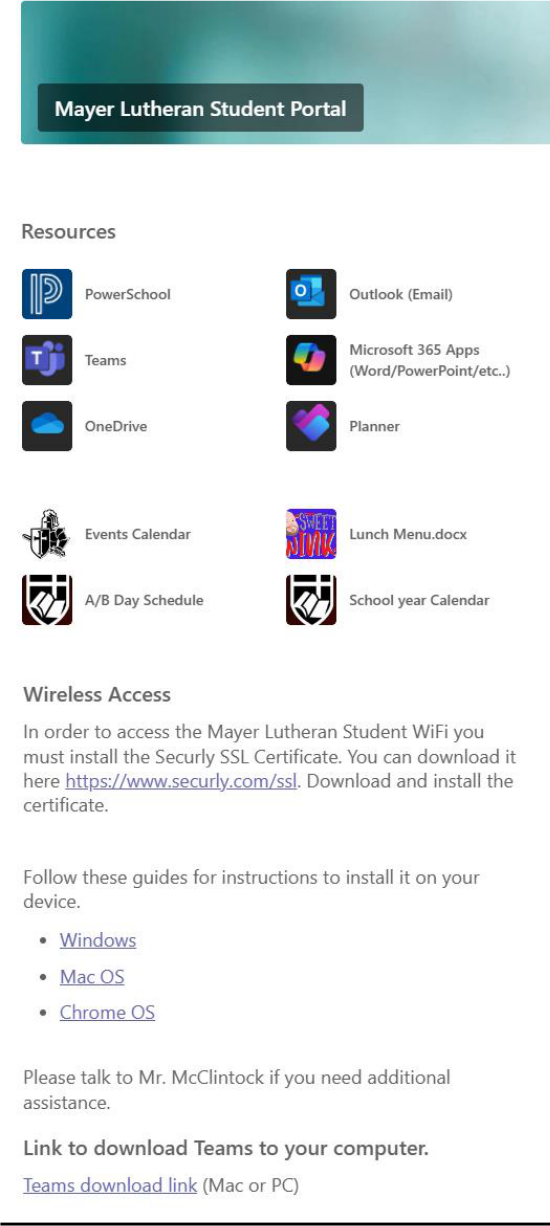
- Open the Student Portal
- Sign in with your school Microsoft account
- Bookmark the Student Portal
The school Wi-Fi certificate
- Install the Securly certificate
- Switch to the MLHS Students Wi-Fi
- Sign in when the network asks you to
Your two logins
- Learn which login goes where
- Log into PowerSchool
Microsoft Teams
- Open Teams
- Install the Teams app (Windows and Mac only)
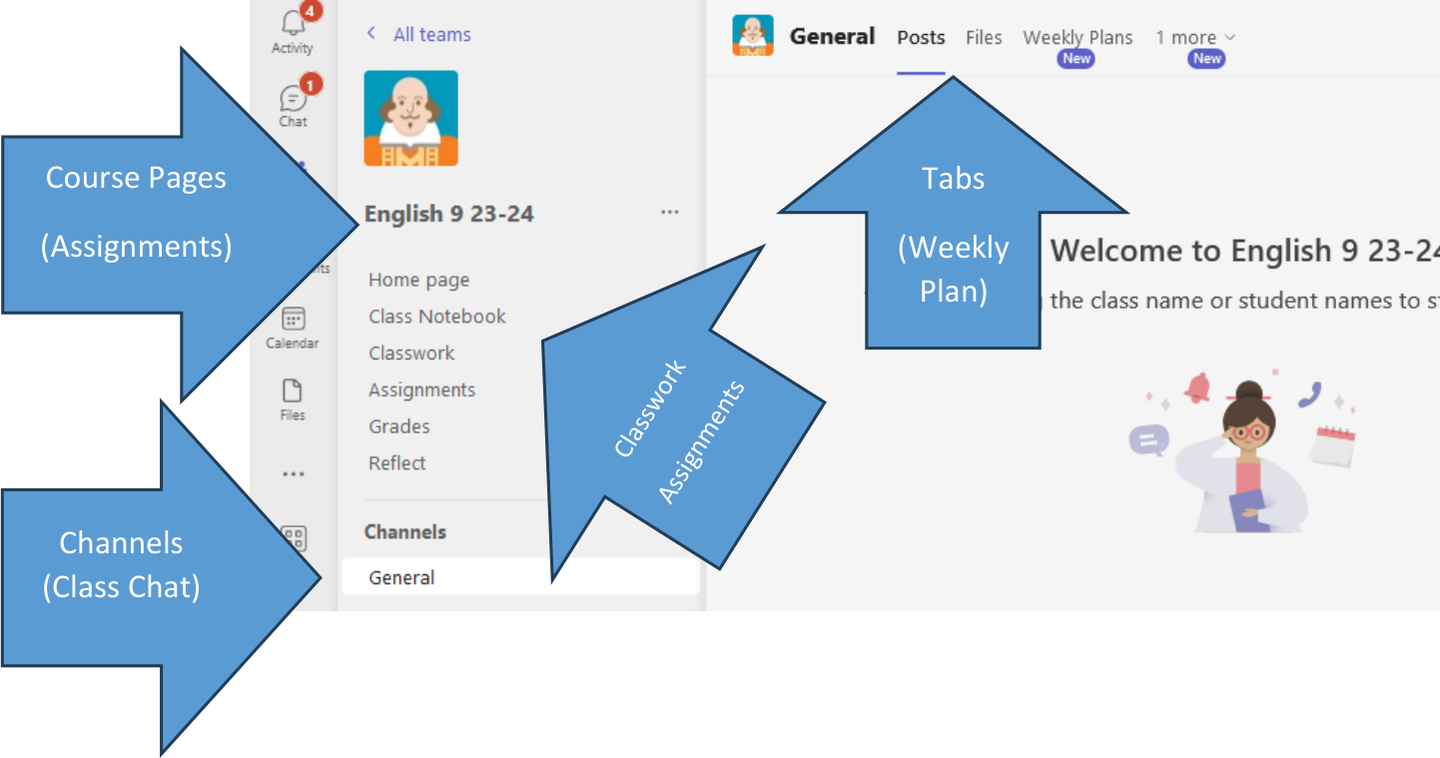
- Find your list of classes
- Open the Weekly Plan for 2026 Test Team
- Turn in the practice assignment
- Send Mr. McClintock a chat
Email, files, and printing
- Send Mr. McClintock an email
- Make a OneDrive folder for each class
- Set up OneDrive on your computer (Windows and Mac only)
- Create a Word document in OneDrive
- Find Cloud Printing in CrusaderWorks
Your phone
- Install the PowerSchool app
- Install the Teams app
- Install the Outlook app
- Install OneDrive and Word — Go further
Class accounts
- Sign up for the typing site (freshmen)
Worth knowing
- Understand what the school can see
- Know how to get help after today
Finished early?
- Help somebody near you — Go further
- Find the Weekly Plan in every one of your classes — Go further
- Set up an email signature — Go further
- Get the school calendar on your phone — Go further
- Learn five keyboard shortcuts — Go further
Things you’ll want to look up
- Your email / Microsoft 365
- firstname.lastname@mayerlutheran.org
- Email, files, Teams, Word. Type the whole thing.
- PowerSchool
- firstname.lastname
- No @mayerlutheran.org, and a different password.
- PowerSchool phone app
- District code LCWG
- Wi-Fi
- MLHS Guest today → MLHS Students once the certificate is in
- Printing
- CrusaderWorks → Tools → Cloud Printing
- Stuck, or forgotten a password?
- matt.mcclintock@mayerlutheran.org
- Or a Teams chat, or come and find me. Ask early.
Finish at home
- Install Word, Excel and PowerPoint (Windows and Mac only)
- Pack your charger
Your ticks are saved on the website — go back to new.mayerlutheran.org and finish the list.
Nothing on this sheet is a test. Ask for help the moment you want it — that’s what today is for.
If you get stuck — the details
You don’t need to read this. It’s here for when something won’t work and you’re waiting for a helper. Steps are given for every kind of computer — find the heading that matches yours and ignore the rest. The website only shows you yours.
Start here
Turn on your laptop and join the MLHS Guest Wi-Fi
MLHS Guest is just to get you online. The very next section moves you onto the real student network — but you need the internet first to set that up, so start here.
Step by step
Windows
- Click the Wi-Fi icon in the bottom-right corner, near the clock.
- Click the arrow (>) next to the Wi-Fi symbol to see the list of networks.
- Pick MLHS Guest and click Connect.
- If a page opens asking you to accept terms, accept it.
Mac
- Click the Wi-Fi icon in the top-right menu bar.
- Pick MLHS Guest from the list.
- If a page opens asking you to accept terms, accept it.
Chromebook
- Click the clock in the bottom-right corner.
- Click the Wi-Fi button, then pick MLHS Guest.
- If a page opens asking you to accept terms, accept it.
If it's not working
- No networks listed at all? Wi-Fi is switched off. On a laptop there's often a physical key for it — look along the F1–F12 row for a little antenna symbol and press it (you may need to hold Fn).
- Says connected but nothing loads? Open a browser and go to any website. Guest networks usually wait for you to open a page before they let you through.
- Asks for a password? You picked the wrong network. MLHS Guest doesn't need one. Go back and check the name.
Sign in with your school Microsoft account
Your email address is firstname.lastname@mayerlutheran.org — your full first and last name, with a dot between them, exactly as the school spells it.
Type the whole email address including @mayerlutheran.org. Just the first part won't work.
If it's not working
- "We couldn't find an account" — check your spelling, especially if your legal first name is longer than the name you go by. Alexander, not Alex.
- "Your password is incorrect" — passwords are case-sensitive and the letter O and the number 0 look almost identical on that card. Try it once more slowly, then raise your hand rather than locking yourself out.
- It signed in as someone else's account — the browser remembered a previous account. Click the account picture in the top right, sign out, and sign in again with your address.
- It's asking for a personal Microsoft account password — see the note below about personal accounts.
Bookmark the Student Portal
Do this now, while the portal is still on screen.
Step by step
Windows
- With the portal open, press Ctrl + D.
- Where it says Folder, choose Bookmarks bar (Chrome) or Favorites bar (Edge) so it's always visible.
- Change the name to something short like
Portal, then click Done. - Don't see a bar under the address box? Press Ctrl + Shift + B to turn it on.
Mac
- With the portal open, press ⌘ + D.
- Choose Favourites Bar / Bookmarks Bar so it's always visible.
- Change the name to something short like
Portal, then click Done or Add. - Don't see a bar under the address box? Press ⌘ + Shift + B.
Chromebook
- With the portal open, press Ctrl + D.
- Choose Bookmarks bar in the Folder box.
- Change the name to something short like
Portal, then click Done. - Don't see a bar under the address box? Press Ctrl + Shift + B.
Bookmark this checklist too — it keeps your checkmarks, and the 'At home' section at the bottom is waiting for you tonight.
The school Wi-Fi certificate
Install the Securly certificate
Bring your laptop to the help desk for this one. It needs your computer's admin password and it goes differently on every machine. There is no prize for struggling through it by yourself.
Chromebook
On a Chromebook, plan on asking for help with this one. The certificate settings are buried several menus deep, and if your Chromebook is managed by a school or a parent you may not be allowed to install it at all. Get in the help queue rather than hunting through Settings on your own — this is the expected way to do it, not a last resort.
Open securly.com/ssl: www.securly.com/ssl — Download the certificate from here first
Step by step
Windows
- Download the certificate file from securly.com/ssl.
- Double-click the downloaded file.
- Click Install Certificate.
- Choose Local Machine and click Next. It will ask for an admin password.
- Choose Place all certificates in the following store, click Browse, and pick Trusted Root Certification Authorities.
- Click Next, then Finish, and accept the security warning.
Using Firefox? Firefox keeps its own separate list and ignores the one you just did. It needs importing a second time inside Firefox's own settings. Tell the helper you use Firefox.
Mac
- Download the certificate file from securly.com/ssl.
- Open Keychain Access (press ⌘+Space and type it).
- Drag the downloaded file into the System keychain.
- Enter your Mac's admin password when asked.
- Find the certificate in the list and double-click it.
- Expand Trust, and set When using this certificate to Always Trust.
- Close the window — it asks for your password once more to save.
You need the password you use to install software on this Mac. If it's a family computer and you don't know it, you'll need a parent — get the rest of your list done today and come back to this one.
Chromebook
- Download the certificate file from securly.com/ssl.
- Open Settings → Privacy and security → Security.
- Click Manage certificates.
- Open the Authorities tab and click Import.
- Pick the downloaded file.
- Tick Trust this certificate for identifying websites, then OK.
⚠ The Student Portal also has step-by-step guides with pictures for Windows, Mac, and Chrome OS under Wireless Access.
Microsoft Teams
Open Teams
Find the T logo under Resources on the Student Portal.
Windows
Open it in your browser for now. The next task installs the app, which is better.
Mac
On a Mac, use Chrome rather than Safari — Teams in Safari has a history of misbehaving around assignments. The next task installs the app, which is better still.
Chromebook
On a Chromebook you use Teams in the browser — that's the normal way, and nothing is missing. Skip any instruction on this site that talks about installing the app.
If it's not working
- Stuck on a loading spinner? Give it a full minute the first time — it's building your account. If it's still spinning, refresh once.
- Asking you to sign in again? Use your full
@mayerlutheran.orgemail, same as the portal. - "You're missing out! Ask your admin to enable Teams." — you're signed in with a personal Microsoft account, not your school one. Sign out and sign back in.
Install the Teams app (Windows and Mac only)
Windows
The installed app is faster than the browser version, and notifications actually reach you.
Download Teams: www.microsoft.com/en-us/microsoft-teams/download-app
Mac
The installed app is faster than the browser version, and notifications actually reach you. On a Mac it also avoids Safari, which has a history of misbehaving with assignments.
Chromebook
Nothing to install on a Chromebook — Teams in the browser is the normal way and nothing is missing. Tick this one and move on.
If it won't install here, use Teams in your browser for today and finish this at home.
Turn in the practice assignment
In 2026 Test Team, click Assignments and open the practice one. This is the exact process you'll use for every real assignment all year, so it's worth doing slowly.
Step by step
- Open the assignment and read the instructions.
- Click the Word document attached under My work. It opens straight in your browser.
- Answer the question. It saves as you type — there is no Save button and you don't need one.
- Click Close in the top-right of the document to come back to the assignment.
- Click Turn in.
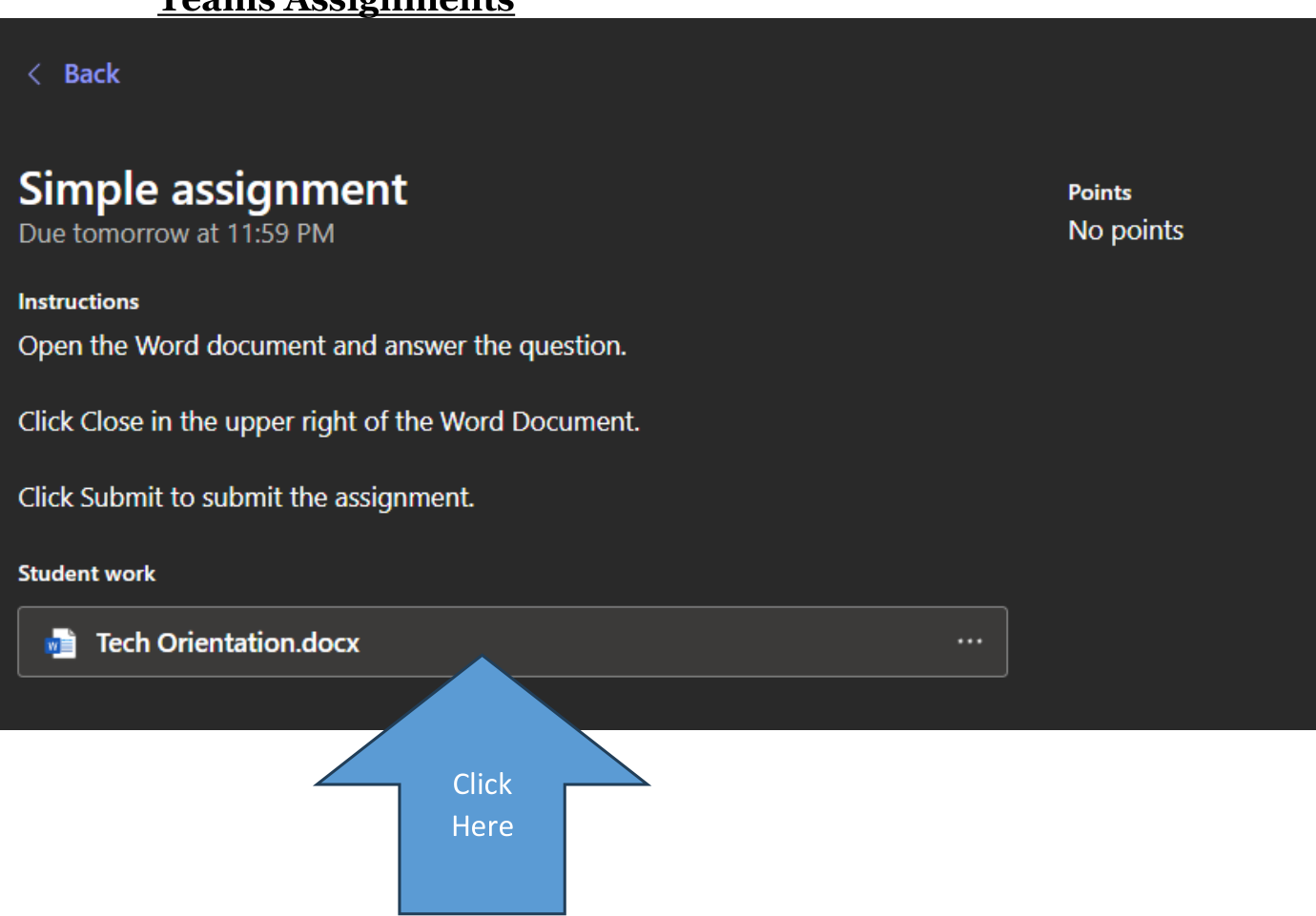
Writing in the document is not the same as turning it in. Work you never turned in looks the same as work you never did, so it is worth checking every time.
If it's not working
- No Turn in button? You're still inside the document. Close it first.
- *Button says Undo turn in?* You already did it. You're finished.
- Document won't open? Try once more; if it still won't, raise your hand — don't sit and wait.
Email, files, and printing
Send Mr. McClintock an email
Open Outlook from the same Student Portal, and email matt.mcclintock@mayerlutheran.org.
Before you send it, read the box below. You'll write a few hundred emails to teachers over the next four years and this is the whole skill.
If it's not working
- Can't find Outlook? It's on the Student Portal under Resources, with the blue envelope icon.
- Bounced back? Check the address spelling —
matt.mcclintock@mayerlutheran.org, two dots. - Sent it from a personal Gmail? Send it again from your school account. That's the one that counts.
Set up OneDrive on your computer (Windows and Mac only)
Windows
This puts your school files in a normal folder on your computer, so you can open and save them without going to a website every time. It also means your work is backed up automatically.
- Open OneDrive from the Student Portal.
- Click the gear icon in the top right.
- Click Sync this OneDrive.
- Your browser will ask something like “Open Microsoft OneDrive?” — click Open. That's expected.
- Sign in with your school email address if it asks.
- Accept the folder location it offers and click Next through the setup.
- Open File Explorer — there'll be a OneDrive - Mayer Lutheran folder in the sidebar. Same files you just saw in the browser.
If OneDrive is already signed in as somebody else — a parent, or your own personal Microsoft account — don't sign them out. Open OneDrive's settings, go to Account, and choose Add an account. It can run both at once.
Mac
This puts your school files in a normal folder on your Mac, so you can open and save them without going to a website every time. It also means your work is backed up automatically.
First: install OneDrive from the App Store if it isn't there already. Unlike Windows, a Mac doesn't come with it.
- Open OneDrive from the Student Portal.
- Click the gear icon in the top right.
- Click Sync this OneDrive.
- Your browser will ask something like “Open Microsoft OneDrive?” — click Open. That's expected.
- Sign in with your school email address if it asks.
- Accept the folder location it offers and click through the setup.
- Open Finder — there'll be a OneDrive - Mayer Lutheran folder in the sidebar. Same files you just saw in the browser.
If OneDrive is already signed in as somebody else — a parent, or your own personal Microsoft account — don't sign them out. Open OneDrive's settings, go to Account, and choose Add an account. It can run both at once.
Chromebook
Nothing to do on a Chromebook — your files already live online, which is exactly what this step sets up on other computers. Tick it and move on.
This one can take a while and needs a decent connection. If it stalls, tick the rest of the list and finish this at home tonight.
If it's not working
- Nothing happened when you clicked Sync this OneDrive — the browser prompt may have been blocked. Look for a small icon at the right-hand end of the address bar, or just open the OneDrive app on your computer directly and sign in with your school email. Same result.
- It asks for a personal Microsoft account — you picked the wrong sign-in. Use your
@mayerlutheran.orgaddress. - It wants to back up your Desktop, Documents and Pictures — on a family computer, say no for now and ask a helper. On your own computer it's fine either way.
- It's still syncing after ten minutes — that's normal on a busy network. Leave it running and carry on with the list.
Find Cloud Printing in CrusaderWorks
You don't install a printer at school. Printing goes through CrusaderWorks, which means it works from anywhere — a classroom, home, your phone.
- Go to the Student Portal and find the link to CrusaderWorks.
- Once it opens, look down the left-hand side and click Tools.
- Click Cloud Printing.
- Look at the list of printers, and check you can see the STEM printer.
Don't actually print anything today. All we want is for you to find this page and confirm the printer shows up.
If it's not working
- Can't find CrusaderWorks on the portal? Ask — it's there, but it isn't always where you'd expect.
- It asks you to sign in? Use your school email, same as everything else today.
- No printers listed, or no STEM printer? Tell Mr. McClintock. That's a real problem worth finding now, and it's exactly why we're checking.
Your phone
Install the PowerSchool app
The app asks for a District Code before anything else. Ours is LCWG.
iPhone
PowerSchool Mobile — App Store — search your app store
Android
PowerSchool Mobile — Google Play — search your app store
Sign in with firstname.lastname and your PowerSchool password — the second one on your card, not your email password.
Install the Teams app
iPhone
Microsoft Teams — App Store — search your app store
Android
Microsoft Teams — Google Play — search your app store
Sign in with your school email. If it offers you a personal account you already have, say no and use the school one.
Install the Outlook app
iPhone
Microsoft Outlook — App Store — search your app store
Android
Microsoft Outlook — Google Play — search your app store
Outlook splits your mail into Focused and Other. Real school email lands in Focused. Check Other every so often anyway — it guesses wrong sometimes.
Install OneDrive and Word
Useful for reading a document on the bus, or photographing something and dropping it straight into a class folder.
iPhone
OneDrive — App Store — search your app store
Word — App Store — search your app store
Android
OneDrive — Google Play — search your app store
Word — Google Play — search your app store
Class accounts
Sign up for the typing site
The sign-up link lives in CrusaderWorks, under Tools — the same place as Cloud Printing.
- Open CrusaderWorks from the Student Portal.
- Click Tools in the left-hand menu.
- Find the typing link and open it.
- Sign up using your school email address.
Use a different password than your school password. Your school password opens your email, your files, and your grades. It should never be typed into a website that isn't the school's — not this one, not any of them. If a site ever gets broken into, the password you used there is the password someone tries everywhere else.
Step by step
Pick three random words and a number — otter-piano-lamp7. Long beats complicated: it's far harder to crack than Xk9!p and you can actually remember it.
Write it on the same card as your school passwords and keep the card somewhere sensible. Written on paper at home is genuinely fine. Reused across ten websites is not.
Finished early?
Learn five keyboard shortcuts
Windows
- Ctrl + S — save (harmless everywhere, essential in apps that don't autosave)
- Ctrl + Z — undo, including things you thought were unrecoverable
- Ctrl + F — find a word on the page. Stop scrolling for it.
- Alt + Tab — switch between open windows
- Ctrl + Shift + T — reopen the tab you just closed by accident
Mac
- ⌘ + S — save
- ⌘ + Z — undo
- ⌘ + F — find a word on the page
- ⌘ + Tab — switch between open apps
- ⌘ + Shift + T — reopen the tab you just closed by accident
Chromebook
- Ctrl + F — find a word on the page
- Ctrl + Z — undo
- Alt + Tab — switch between windows
- Ctrl + Shift + T — reopen the tab you just closed
- Search + 5 — screenshot
At home
Install Word, Excel and PowerPoint (Windows and Mac only)
Windows
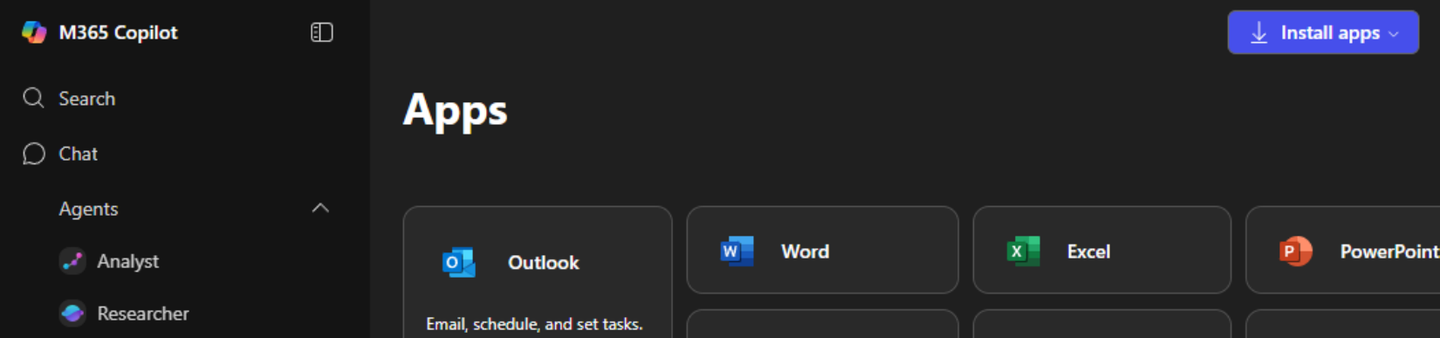
- Go to the Student Portal and click Microsoft 365 Apps.
- Click Install apps at the top right.
- Run the downloaded installer and leave the computer on — it takes a while.
Mac
- Go to the Student Portal and click Microsoft 365 Apps.
- Click Install apps at the top right.
- Open the downloaded installer and follow it. You'll need your Mac's admin password.
Chromebook
Nothing to install — Chromebooks run Word in the browser and you already have it. Skip this one; it's genuinely done.